Elastio offers advanced ransomware protection for your Amazon S3 buckets, ensuring your data is secure and resilient against ransomware, malware, and other threats. This section provides guidance on creating protection policies, optimizing protection for large buckets, and ensuring compatibility with supported storage classes. By implementing these features, you can maintain the integrity and availability of your critical S3 data.
It is designed to be affordable and cost-effective, offering unlimited inspections per month. License fees are based on storage/GB protected rather than the number of inspections.
S3 Protection Options
Zero-Day Ransomware Detection
Detects never-before-seen ransomware using a 3-layered behavioral machine learning model. Models are continuously updated with the latest ransomware intelligence from Elastio’s security lab.Encryption Detection
Identifies internal threats by detecting newly encrypted or suspiciously modified files. Uses advanced behavioral analysis to compare file changes between scans, flag encryption activity, and assess file types for compromise.Malware Signature Scan
Detects known malware including ransomware payloads, Trojans, spyware, adware, and crypto-miners. Signature databases are updated as frequently as hourly for maximum protection.
S3 Protection Types
-
Base plus Incremental Forever Protection
Provides comprehensive ransomware protection for your Amazon S3 buckets using a base-plus-incremental forever inspection approach. Event-Based Incremental Forever Protection
Optimized for protecting large Amazon S3 buckets by tracking S3 object modifications as they occur and inspecting them.
Base plus Incremental Forever Protection
This architecture provides comprehensive protection for your Amazon S3 buckets using a base-plus-incremental forever inspection approach. This method ensures that all existing data is thoroughly inspected initially, followed by incremental inspections focusing only on newly added or modified objects.
Access Policies Menu
Select “Policies” from the menu and press the “Create New” button.
Step 1: Name, Schedule, and Activation Settings
In this first step, you define the policy’s basic details, including its name, schedule, time zone, and when it becomes active.
Policy Name
Enter a clear and descriptive name for the policy.
Example: Daily S3 Malware Scan or Weekly EC2 Ransomware Protection.
Schedule Frequency
Defines how often the protection job runs.
-
Options may include:
Daily – Runs once every day.
Weekly – Runs on a chosen day each week.
Monthly – Runs on a chosen date each month.
Protection Window Start
Sets the start time for the scheduled protection job.
Adjust using the time picker icon.
Time Zone
Specifies the time zone used for the schedule.
Select the correct time zone to ensure accurate start times.
Activation Settings
Choose when the policy becomes active:
Activate now – Policy starts immediately upon saving.
Pause until… – Delays activation until the specified date and time.
When using Pause until…, a second Protection window start field appears to set the start time for the first run after activation.
Tip:
For immediate protection, select Activate now. Use Pause until… to align activation with planned changes, maintenance windows, or staged rollouts.
Step 2: Choose S3 Buckets to Protect
This step allows you to select one or more Amazon S3 buckets for protection under the policy you’re creating.
Choose Scope
Dropdown Menu – Filter buckets by AWS account and region.
All – Shows all available buckets in your accessible accounts.
Asset Type Selection
EC2/EBS – Switch to select EC2 instances and EBS volumes.
S3 Bucket – Select S3 buckets for scanning and protection.
EFS – Select Elastic File System volumes.
Note: This screen shows the S3 Bucket selection mode.
Bucket List Table
Each row represents a bucket available for selection and includes:
Checkbox – Enable to include this bucket in the policy.
S3 Bucket – The name of the S3 bucket.
Account – The AWS account ID and region where the bucket resides.
Policy – The currently assigned protection policy (if any).
-
Paths –
All Paths – If checked, all objects in the bucket are scanned.
Select Paths… – Allows you to choose specific prefixes (paths) within the bucket to scan. If you wish to inspect specific objects, Elastio provides a variety of filtering options, such as prefixes, paths, or globs. After selecting the desired filters, click “Save.”
Requirement:
You must select at least one S3 bucket before proceeding to the next step. A red warning message will appear if no bucket is selected.
Tip:
Use Select Paths… when you want to scan only certain folders or data sets within a bucket. This can reduce scan time and focus protection on high-priority data.
Step 3: Recovery Assurance and S3 Scan Settings
In this step, you configure how Elastio detects and responds to ransomware, malware, and encryption threats, as well as optional scan criteria for S3 object storage.
Recovery Assurance Settings
These settings define the protection methods applied to your selected assets:
Zero-Day Ransomware Detection
Detects never-before-seen ransomware using a 3-layered behavioral machine learning model. Models are continuously updated with the latest ransomware intelligence from Elastio’s security lab.Encryption Detection
Identifies internal threats by detecting newly encrypted or suspiciously modified files. Uses advanced behavioral analysis to compare file changes between scans, flag encryption activity, and assess file types for compromise.Malware Signature Scan
Detects known malware including ransomware payloads, Trojans, spyware, adware, and crypto-miners. Signature databases are updated as frequently as hourly for maximum protection.
S3 Settings
These options control how Elastio scans objects stored in Amazon S3:
-
Scan objects uploaded after a specific time (optional)
Limits scanning to objects added or modified after the specified date and time.
Useful for focusing on recent uploads while avoiding re-scanning older, unchanged data.
Select the date and time using the calendar and clock controls.
Tip:
For comprehensive protection, keep all Recovery Assurance settings enabled. If scanning recent uploads only, ensure that older data has been previously verified clean.
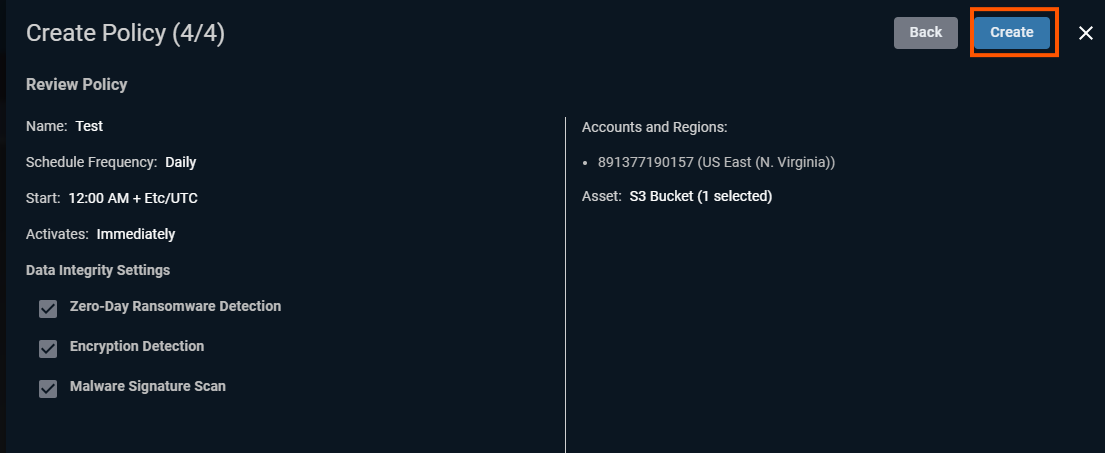
Step 4: Review the policy and click "Create"
Event-Based Incremental Forever Protection
This protection method focuses exclusively on new or updated objects, enabling Elastio to provide rapid, incremental ransomware inspections without needing full-bucket inspections. This approach is ideal for large S3 buckets with 10's-100's of millions of objects.
The CloudFormation template described below enables the Changelog feature for S3 buckets, which significantly improves the inspection performance after the initial inspection of the entire bucket is done. This template deploys an SQS queue and an EventBridge rule which sends S3 update events to the queue. Then, the Elastio iscan job reads those events to perform the inspection of new objects.
Deploying the CFN stack
- First, you need to enable Amazon EventBridge for your S3 buckets by following these instructions: Enabling Amazon EventBridge.
-
Use one of the following quick-create links. Choose the region where your Elastio Cloud Connector is deployed.
Important! You can change the stack name, but it MUST start with
elastio-. Otherwise, Elastio won't be able to access the created resources. -
Fill in the main parameters:
- BucketNames - comma-separated list of S3 bucket names;
-
ScanExistingObjects - set to
trueif you want to perform the initial inspection of all objects in the bucket(s); - KeyPrefixes - (optional) comma-separated list of prefixes of objects to inspection. This will be applied to all buckets. If you want to use different prefixes for different buckets, you need to deploy multiple S3 Changelog stacks. Also, note that the paths selector in the Protection Policy will also be used to filter objects before inspection. This means that the KeyPrefixes parameter must be in sync with the paths selector in the Protection Policy or not specified at all;
-
DisableEventCollection - if you decide to disable the protection policy for your S3 bucket, you can set this to
trueto stop accumulating S3 update events in the SQS queue.
IMPORTANT: If you set this parameter to
true, then no more objects will be inspected on this bucket. If you set it back tofalse, then any new objects after the parameter is set tofalsewill be available to inspect, but all changes made to the bucket during the time when this parameter was set totruewill not be inspected, unless you manually initiate a full inspection of the entire bucket. - Check the box in front of
I acknowledge that AWS CloudFormation might create IAM resources with custom namesandI acknowledge that AWS CloudFormation might require the following capability: CAPABILITY_AUTO_EXPANDand clickCreate stack. - Create an S3 protection policy for your buckets in Elastio Tenant.
S3 Storage Classes
Supported S3 Storage Classes
Elastio currently supports the following S3 storage classes:
- S3 Standard
- S3 Intelligent-Tiering (Standard Objects)
Limitations:
Elastio does not support S3 archive classes, including:
- S3 Standard-Infrequent Access (S3 IA)
- S3 Intelligent-Tiering (non-standard tiers such as Archive and Deep Archive)
- S3 Glacier and S3 Glacier Deep Archive
Objects with ACLs
Automatic Detection of Access Control Lists (ACL) on Object:
Elastio inspects automatically detect Access Control List (ACL) objects and skip them, ensuring efficient inspection by focusing only on relevant data.
For optimal compatibility, ensure that your S3 data is stored in supported classes. If your data is in an unsupported class, consider transitioning it to a supported class for Elastio's inspection and protection capabilities.